
Compress Video - Size Reducer
DictionaryAndTranslatorVideo Players & Editors
4.6112.00 Reviews
- Version
- 4.1.0
- Installs
- 500.00K
- Age Rating
- Everyone
Screenshots
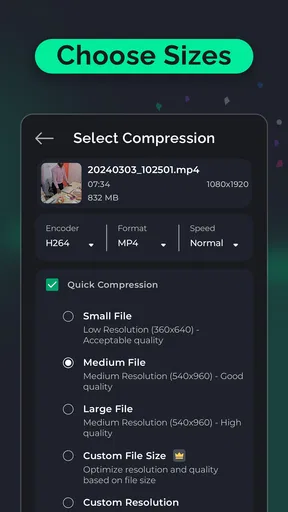
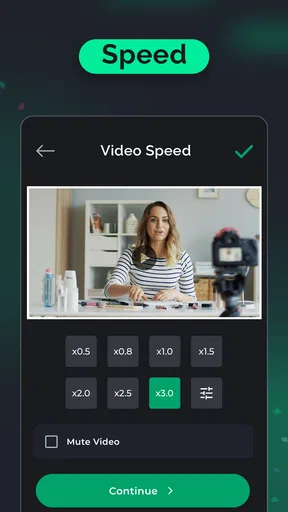
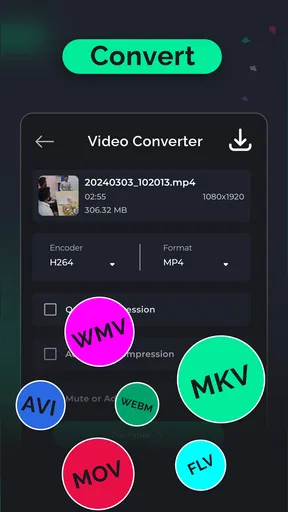
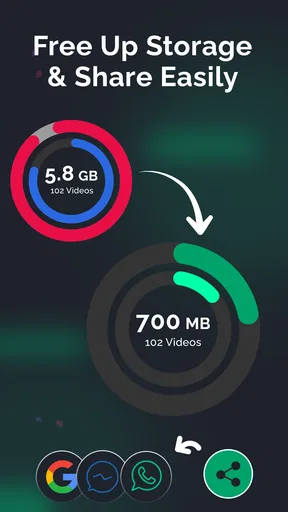
Our Review of Compress Video - Size Reducer
 Analysis by Appyee
When a video is too large to send, save, or upload, I usually want one thing: a quick way to make it smaller without turning the process into a technical project. Compress Video - Size Reducer is built around that simple need. It is a free video compression and media conversion app from DictionaryAndTranslator, and after using it, I see its main appeal clearly: it gives ordinary phone users a more approachable alternative to desktop converters and complicated editing suites.
My overall view is positive, but not uncritical. This is not the app I would choose for a professional production workflow or for someone who needs detailed control over every encoding setting. It makes more sense for everyday storage and sharing problems: reducing a long clip before sending it, resizing a recording for a social platform, or keeping a phone gallery from filling up too quickly. Its best quality is convenience, not cinematic precision.
What the app is really useful for
The app sits in the video players and editors category, although its purpose is narrower than a full editor. I would think of it as a practical utility that helps prepare existing videos rather than a place to build a complete project. The store summary focuses on saving space and resizing media, and that matches the way I found it most useful: select a video, reduce its footprint, and create a more manageable copy.
That distinction matters. If you expect timelines, transitions, captions, filters, audio mixing, or a large creative toolkit, this is probably the wrong download. If your immediate problem is that a video is too heavy for a message, email, cloud upload, or limited device storage, the focused design is an advantage. There are fewer creative distractions between the original clip and the smaller version.
I also like that the app is free to install and suitable for Everyone. That makes it approachable for families, students, and casual users who may only need compression occasionally. The application has reached over 500 thousand installs and holds a 4.6 average from around 12 thousand ratings, which suggests that its straightforward purpose connects with a substantial number of Android users. Those figures do not replace personal testing, but they do fit my impression that this is designed for common, uncomplicated tasks.
A realistic everyday workflow
Imagine recording a school performance or a family event on your phone. The original file looks fine on the device, but it is awkwardly large when you try to share it. Instead of opening a desktop program, transferring the clip, and learning export settings, you can use a dedicated compressor on the phone. I would make a smaller copy for messaging while keeping the original untouched for later viewing or archiving.
That last point is important. Compression is not magic: reducing file size normally involves a trade-off between storage and visual quality. My practical advice is to treat the first compressed version as a sharing copy, not as a replacement for an irreplaceable original. For important footage, keep the source until you have checked the result on a larger screen and confirmed that the sound, framing, and detail are acceptable.
A second useful scenario is preparing a clip for a service that rejects large uploads. Rather than repeatedly trying to send the same file and guessing why it fails, I would resize or compress it in advance. The app becomes a small step in a larger workflow: record, review, make a lighter copy, then upload. That is less glamorous than video editing, but it solves a problem people encounter far more often than they expect.
Where the strongest value comes from
The strongest part of this app is its focused purpose. Many general editors bury compression inside export menus, while desktop tools can expose a confusing collection of codecs, containers, bitrates, frame rates, and presets. A dedicated mobile utility is easier to understand when the goal is simply “make this video smaller.” That reduced decision-making is particularly helpful for users who do not want to study encoding before sending a clip.
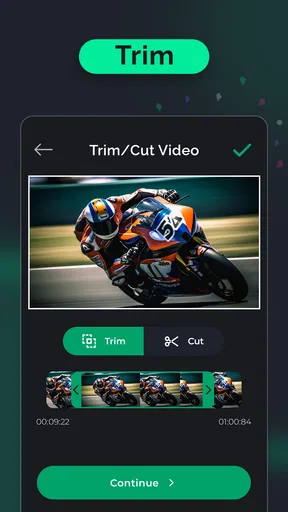
Its media-converter positioning also makes it more flexible than a tool that only trims the beginning and end of a video. Trimming can help, but it does not solve the problem when the entire recording is needed. Compression and resizing address the full file, which is more useful for a long lecture, an event recording, or a phone capture that must remain complete.
One non-obvious advantage is that compression can be used as a deliberate two-copy strategy. I would keep the high-quality original in local storage or another backup location, then create a smaller version specifically for quick sharing. This avoids the common mistake of overwriting the only copy with an aggressively reduced export. The app is more valuable when treated as a preparation tool rather than a destructive cleanup button.
Another practical insight is to judge the result according to its destination. A clip intended for a small phone screen can tolerate more reduction than footage meant for a television or later editing. For a messaging conversation, speed and manageable size may matter more than fine texture. For a family archive, I would be much more conservative and might prefer a larger file or a different converter with clearer technical controls.
Compression, resizing, and the quality trade-off
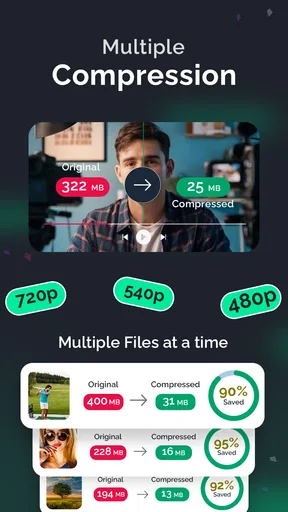
Video size is affected by more than duration. Resolution, frame rate, image complexity, and encoding choices all influence the final result. A quiet interview with a mostly static background can remain pleasant after reduction, while a fast sports clip or busy concert scene may show softness and blockiness sooner. That is why I would not assume that one compression choice works equally well for every recording.
Resizing is especially useful when the original resolution is far beyond what the recipient needs. A phone-recorded clip may be unnecessarily large for a small display, and reducing its dimensions can save space without the same visual penalty as pushing compression too far. The sensible order depends on the situation: for a large upload, resizing may be the cleaner solution; for a modest file that only needs a little reduction, lighter compression may be enough.
I would also preview the exported file before deleting anything. Check the first few seconds, a detailed scene, a section with movement, and the audio. This catches problems that a quick glance at the thumbnail will miss. The useful lesson is that the app can make the process easier, but it cannot decide what quality matters to you. That judgment still belongs to the person using it.
The meaningful weakness: limited control for demanding users
The same simplicity that helps beginners can frustrate experienced users. If you regularly need exact bitrate targets, specific codecs, predictable frame-rate handling, subtitle preservation, or carefully controlled audio settings, a more advanced converter will probably suit you better. I would choose a desktop encoder or a full-featured mobile editor when the output has to meet a strict technical specification.
This limitation is not a minor detail for professional work. Compression can affect sharpness, motion, audio clarity, and compatibility, and serious workflows often require repeatable settings. A focused consumer app is convenient for one-off jobs, but it may not provide the transparency or fine adjustment that an editor, videographer, or content manager expects.
There is also a quality-versus-speed decision that users should make consciously. A smaller file is attractive, but an overly aggressive reduction can make text difficult to read, faces less detailed, and movement less clean. I would rather create a moderately smaller copy first, inspect it, and only reduce further if the destination still demands it. That extra check takes less time than discovering later that the only shareable version looks poor.
The presence of in-app purchases, ranging from under a dollar to amounts approaching a hundred dollars per item, is another reason I would review the purchase screen carefully before confirming anything. The app itself is free to start, but free installation does not necessarily mean every optional part of the experience has the same cost. I would begin with the basic workflow and only consider a purchase if it solves a specific limitation I actually encounter.
Who should install it, and who should skip it
I would recommend Compress Video - Size Reducer to Android users who frequently run into oversized clips but do not want a complicated editor. It is a good fit for parents sharing family videos, students sending recorded presentations, travelers managing limited storage, and anyone preparing phone footage for a service with upload restrictions. It is also suitable for people who want a simple first step before learning more advanced media tools.
The Everyone age rating makes it broadly approachable, but suitability is not the same as usefulness for every person. A child may be able to use a straightforward compressor with guidance, while a professional editor may find it too limited. The right audience is someone who values a short path from selected video to smaller copy more than deep technical control.
I would skip it if your main goal is creative editing. For cutting together scenes, adding titles, synchronizing music, correcting color, or producing a polished social video, a dedicated editor will be a better choice. I would also look elsewhere if you need a carefully documented batch pipeline or consistent export parameters across many projects. In those cases, a desktop converter or a more advanced mobile application gives you better control and repeatability.
Compared with the usual alternatives, this app occupies the practical middle ground. A phone’s built-in gallery may offer basic trimming or sharing, but it may not provide a focused way to reduce a complete video. A full editor offers more possibilities, but also more menus and a steeper learning curve. Desktop software can deliver the most precise results, yet it requires moving files between devices. This app is most convincing when the problem is immediate and mobile: the video is on the phone, the file is too large, and I want a usable copy without setting up a workstation.
Version, access, and day-to-day expectations
The current version is 4.1.0, and the app requires Android 8.0 or later. That makes the compatibility requirement worth checking before installation, especially if you use an older handset. On a supported phone, I would still leave enough free space for both the original and the exported copy. Compression needs room to create the result, and starting with a nearly full device can turn a simple task into a frustrating one.
I would also avoid judging the app only by the final number shown for file size. A smaller file is useful only if it remains fit for purpose. For a quick message, a visibly reduced clip may be exactly right. For a keepsake, a work presentation, or footage that may be edited again, preserving quality should take priority. The app helps create options; it does not remove the need to choose between them.
One workflow I found especially sensible is to organize exports by purpose rather than by vague labels. Keep the original in its normal camera folder, then identify the reduced copy as a sharing version before sending it. This prevents confusion when several similar clips exist and makes it easier to delete temporary exports later. It is a small habit, but it turns a one-time compression tool into a safer part of everyday file management.
Another useful habit is to test a short or less important clip first. That lets you understand how the app behaves on your device and how much reduction you consider acceptable before processing a valuable recording. It also helps answer the question many users have before committing: will the result still look and sound good enough for the person receiving it? A quick trial is more reliable than assuming every video will respond identically.
My final recommendation
After weighing the convenience against the limitations, I see Compress Video - Size Reducer as a sensible specialist rather than a complete video solution. It addresses a common mobile problem directly: making existing videos easier to store or share. The free entry point, Everyone rating, broad Android compatibility from version 8.0 onward, and strong user response make it approachable for casual use, while the developer DictionaryAndTranslator has kept the product’s central idea easy to understand.
My recommendation is strongest for people who want a smaller copy quickly and do not need to control every technical detail. Use it for sharing versions, upload preparation, and everyday storage relief, but keep originals when the footage matters. Check the exported file before deleting anything, choose quality according to the destination, and be aware that optional in-app purchases can range from under a dollar to nearly a hundred dollars per item.
For straightforward phone-based compression, this is a useful and approachable choice; for serious editing or exact encoding work, I would choose a more advanced alternative. That is a clear boundary, but it is also why I find the app easy to recommend to the right person. If your problem is simply that a video is too large, Compress Video - Size Reducer offers a focused way to make it more manageable without asking you to become a video-engineering expert first.
Verdict
Strengths of Compress Video - Size Reducer
- Quickly reduces video file sizes for easier sharing and storage.
- Supports common video formats used by most Android and iOS devices.
- Simple interface suitable for users with little editing experience.
- Lets you preview or select compression settings before saving.
- Helpful for sending large clips through messaging and email apps.
Limitations of Compress Video - Size Reducer
- Strong compression can noticeably reduce video sharpness and detail.
- Processing lengthy or high-resolution videos may take considerable time.
- Exported files may include app branding or other restrictions on some devices.
- Advanced controls for bitrate, codec, and frame rate may be limited.
- Large projects can consume significant battery and temporary storage space.
Other Releases by DictionaryAndTranslator
View All
Stylish Fonts Keyboard
Personalization4.5

Cute Wallpapers for Girls
Personalization4.8

JPEG Image Compressor & Resize
Photography4.7

Sweet Camera Selfie
Beauty4.4
Similar Picks in This Category
View All
Google TV
Google LLC3.9

iTunes
Apple4.7

YouTube
Google LLC3.8

MX Player
Amazon Mobile LLC4.2

CapCut - Video Editor
Bytedance Pte. Ltd.3.5

PLAYit-All in One Video Player
PLAYIT TECHNOLOGY PTE. LTD.4.5
Frequently Asked Questions
What is Compress Video - Size Reducer used for?
Compress Video - Size Reducer is designed to reduce the file size of videos stored on your phone. It can be useful when you need to free up storage space, send a large clip through messaging apps, attach a video to an email, or upload content to a platform with file-size limits. The app generally works by lowering resolution, bitrate, frame rate, or other video settings.
Will compressing a video noticeably reduce its quality?
The result depends on the compression level and the original video. A light or medium compression usually keeps the footage looking clear while making the file easier to share. Strong compression can produce visible softness, blocky details, color loss, or reduced audio quality, especially in dark scenes and fast-moving footage. It is best to preview the output and keep the original before replacing it.
Which video formats and resolutions does the app support?
Support can vary according to the app version, device, and operating system, so users should check the current store description and in-app options before downloading. Common smartphone formats such as MP4 are typically the safest choice. Available export resolutions may include options such as 1080p, 720p, or lower sizes, but not every source format or high-resolution recording is guaranteed to be handled identically.
Does Compress Video - Size Reducer work offline, and is my video uploaded?
Many video compression tools process files directly on the device, which is convenient when you are traveling or have limited internet access. However, privacy behavior can differ between versions, particularly if the app includes cloud processing, advertising, analytics, or sharing features. Before compressing private footage, review the app’s privacy policy and permissions, and avoid granting access that is not necessary for selecting and saving videos.
What should I know about permissions, ads, and the saved output?
The app may request access to photos, videos, or device storage so it can import source files and save compressed copies. Some versions may also include advertisements, optional purchases, or restrictions on certain export features. After processing, check where the new file was saved and confirm that it plays correctly with both video and audio. Do not delete the original until you have verified the compressed copy.
